Available on Google Play, coming soon to the App Store
Your TV remote.
No strings attached.
Control your smart TV from your phone over home Wi-Fi: navigate, change the volume and open apps. Free, with no ads and no account. No IR blaster needed.
Coming soon toApp Store
226 people connected their TV in three weeks, across 13 brands →
- No subscription
- No ads, no account
- Works over home Wi-Fi
- No IR blaster
Three tabs, one app
Control it, open it, or send it from your phone.
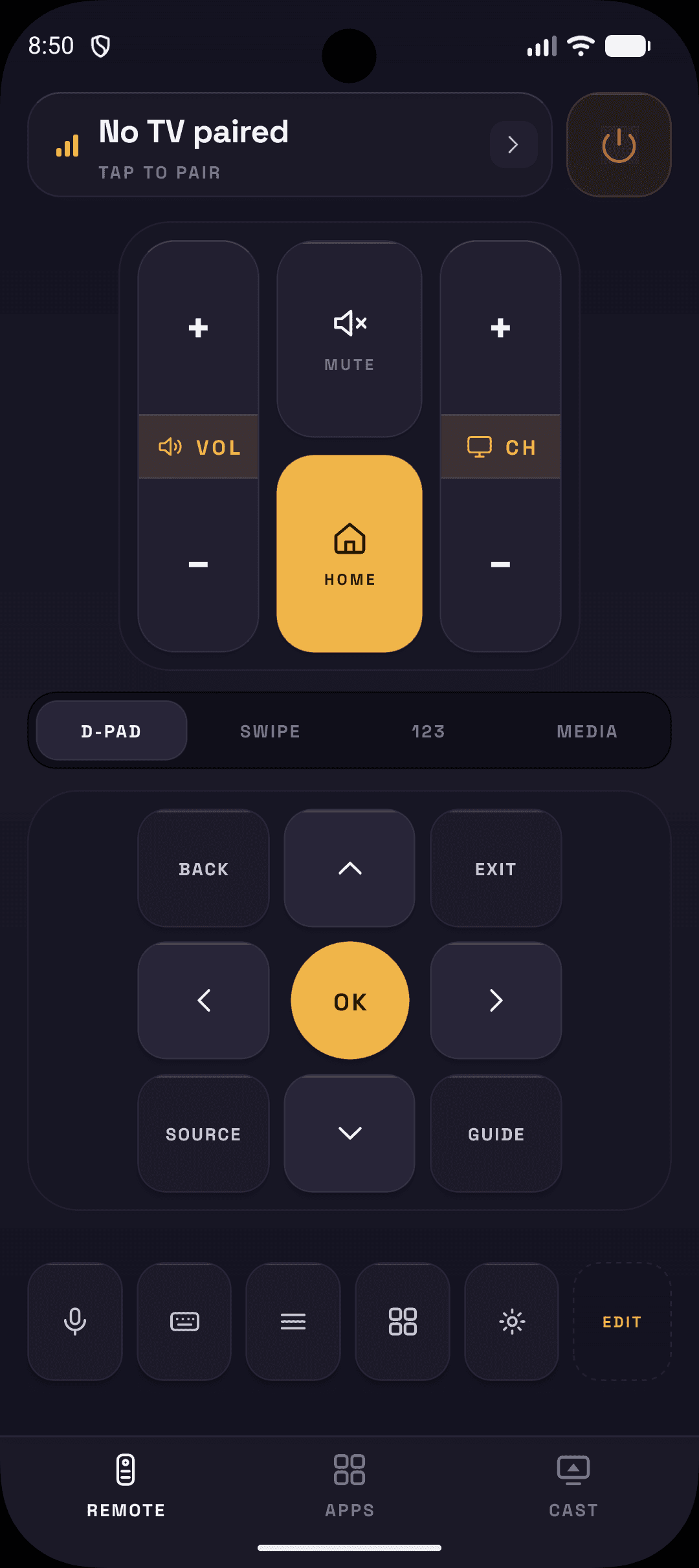
REMOTE
Every button, where your thumb expects it
Power, volume, channel and mute up top; D-pad, swipe, number pad and media transport below. Long-press to edit the layout per TV.
APPS
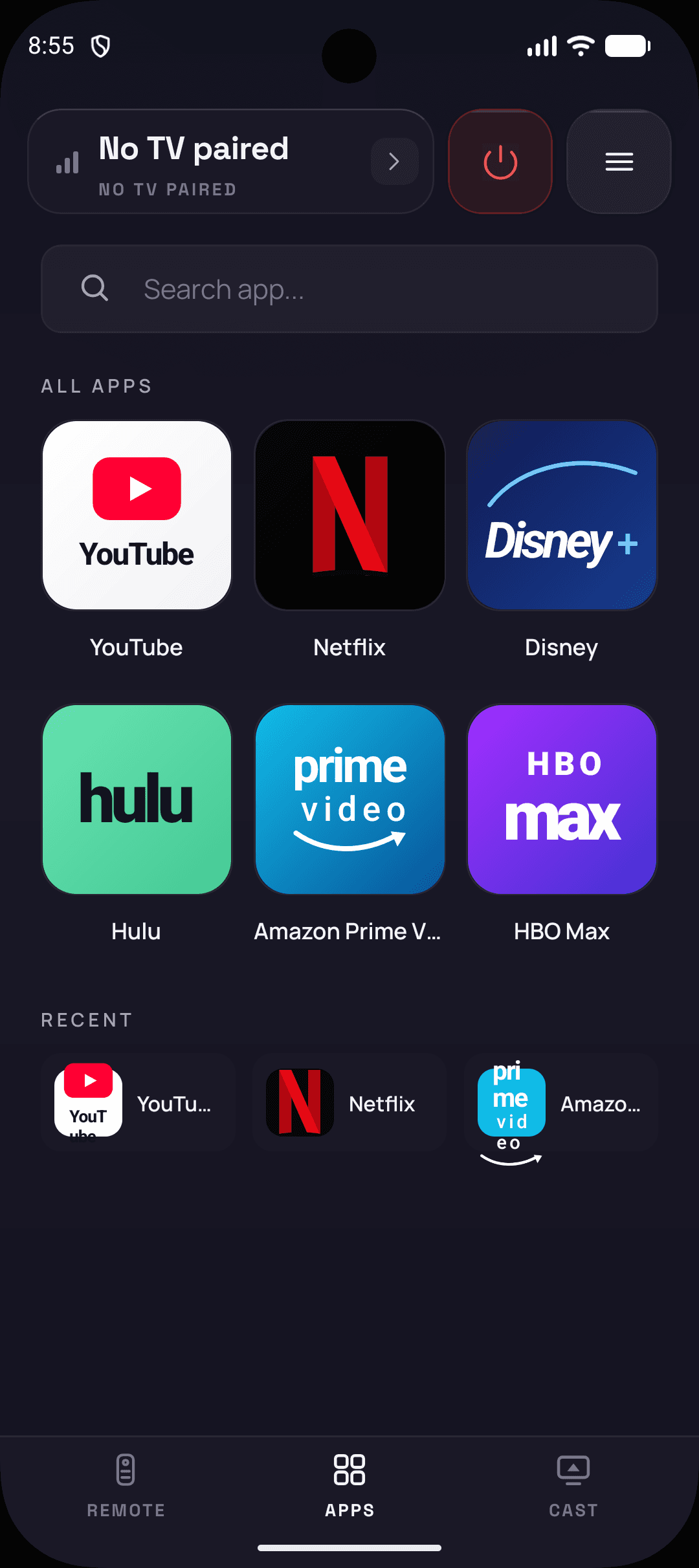
Launch a streaming app in one tap
Use the app shortcuts supported by the TV platform. Availability depends on the app catalogue and the model; this is not a promise of full installed-app enumeration.
CAST
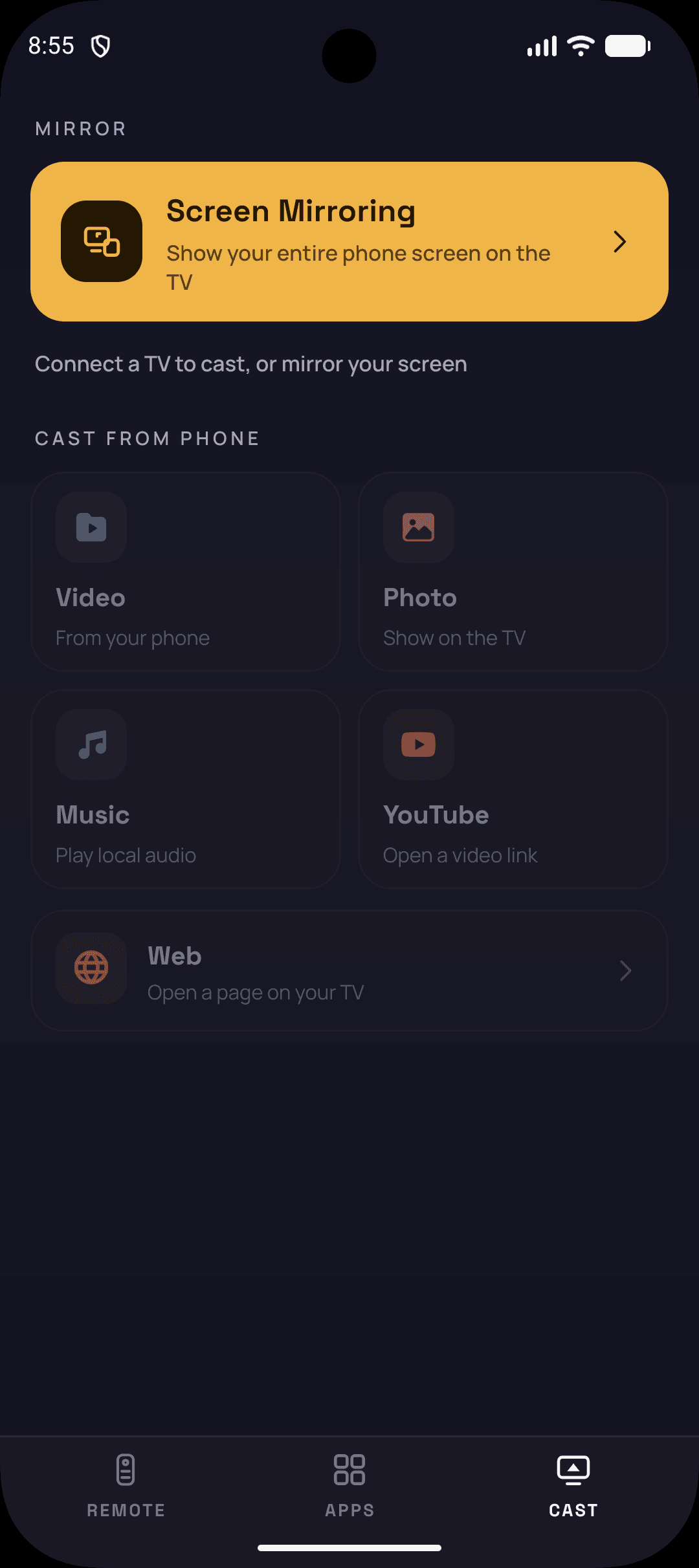
Put your screen, photos or video on the TV
Send supported local media or links to compatible TVs. Screen mirroring and casting depend on your phone, TV platform, model, and firmware.
Phone to TV in three taps
Find your TV, pair once. Then keep the remote close.
Discover
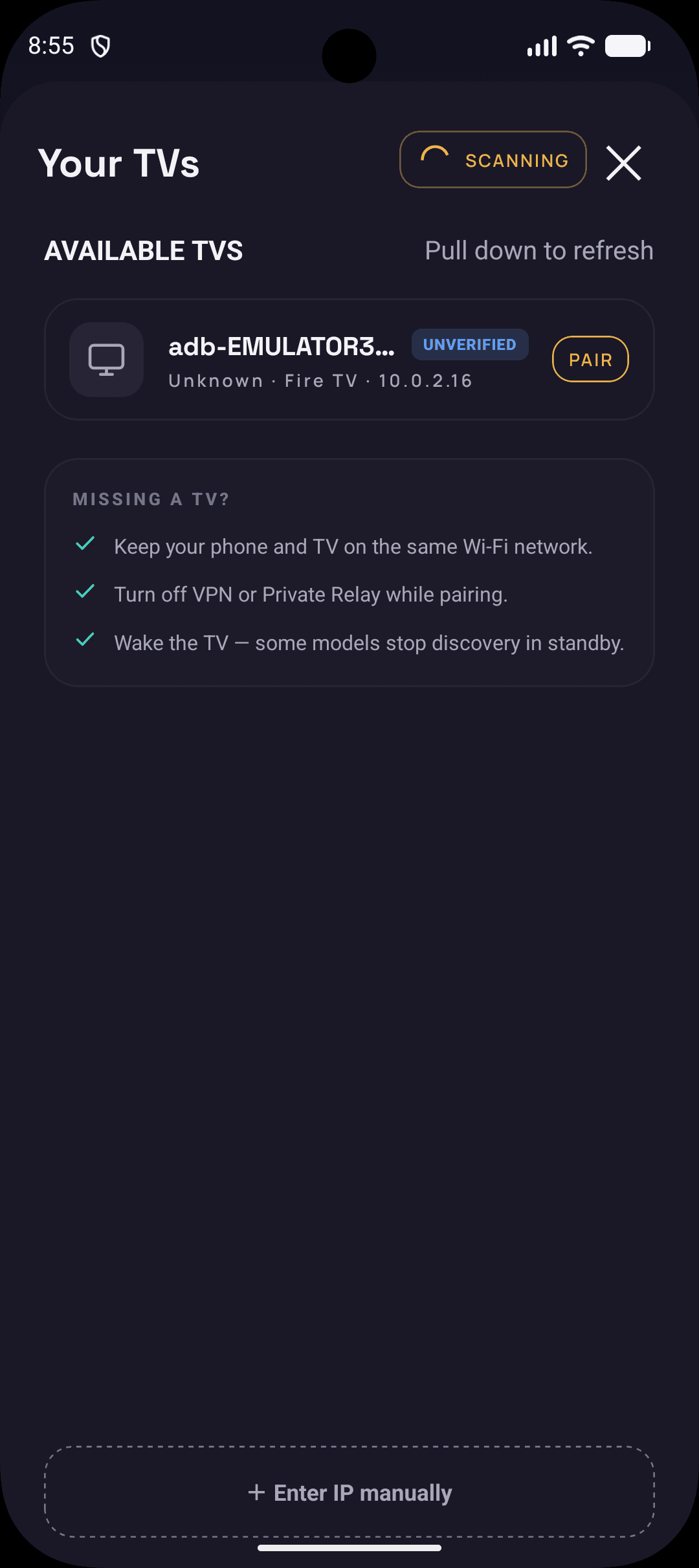
Open the app and compatible TVs on your home Wi-Fi can appear with their platform identified. Discovery depends on your network settings.
Pair
Tap Pair, then follow the TV's approval or pairing-code flow. If discovery cannot find it, manual IP entry is available.
Control
Use the controls supported by that platform. Remote, app shortcuts, and casting options vary by TV model and firmware.
Built for real living rooms
Everything a remote should have done years ago.
Automatic discovery
The app scans your network the moment it opens and lists the TVs it finds, platform already identified.
One familiar interface
Each television speaks its own protocol. TV Remotely groups the supported controls in one place, while compatibility still varies by platform and model.
Samsung TizenLG webOSAndroid TV / Google TVRoku / Roku TVSony BRAVIAAmazon Fire TVOlder Android TV (2015–2018)Hisense VIDAAVizio SmartCastTCL (TCL’s own smart system)Vestel-made TVsPhilips (non-Android)Panasonic VIERAApple TVLayouts you can edit
Hide the buttons your TV does not have and move the ones you use to the top. Saved per television.
Saved TVs, instant switching
Every compatible TV you pair is remembered and one tap away — no rescanning when you move from the sofa to the bedroom.
Manual IP entry
Some networks hide broadcast traffic. When discovery comes up empty, type the TV's address and connect anyway.
Local and private
Commands go straight to the TV over your home Wi-Fi, with no account and nothing to sign up for. Usage statistics are anonymous and can be switched off in Settings.
- No account, no sign-up
- Your TV commands stay on your network
- Anonymous statistics you can switch off
Compatibility
Find your TV.
TV Remotely speaks each platform’s own protocol, so start with the TV’s operating system rather than the brand alone. Find your platform below and read its note.
- people connected a TV
- 226people connected a TV
- of them went on to use the remote
- 92%of them went on to use the remote
- pressed 25+ buttons in one session
- 113pressed 25+ buttons in one session
- TV brands connected
- 13TV brands connected
Real usage, 13 October – 2 November 2026, from the app’s anonymous analytics.
| Platform | Remote · Apps · Media | Real-world results | Notes |
|---|---|---|---|
| Samsung Tizen | Remote: supportedApps: supportedMedia: partial, varies by model year | 72 of 120 connected | 2016 models and newer. Select Allow on the TV the first time. Most failed attempts were a missed or declined prompt, or a TV in deep standby.Setup guide for Samsung Tizen →TV denied the connection? → |
| LG webOS | Remote: supportedApps: supportedMedia: partial, varies by model year | 42 of 62 connected | webOS 3 and later. Accept the pairing prompt on the TV; turn on TV On with Mobile if you want to power it on from the phone.Setup guide for LG webOS →Turn it on from your phone → |
| Android TV / Google TV | Remote: supportedApps: supportedMedia: partial, varies by model year | 95 of 151 connected | Enter the six-character code the TV shows. Connected on TCL, Xiaomi, Skyworth, Philips, Hisense, Sharp and NVIDIA SHIELD. No channel up/down; typing uses the TV’s on-screen keyboard.Setup guide for Android TV / Google TV →No code on the TV? → |
| Roku / Roku TV | Remote: supportedApps: supportedMedia: partial, varies by model year | 8 of 10 connected | Roku players and Roku TVs from TCL, Hisense, onn and others. No pairing step, but Control by mobile apps must be enabled on the Roku.Setup guide for Roku / Roku TV →Turn on Control by mobile apps → |
| Sony BRAVIA | Remote: supportedApps: supportedMedia: partial, varies by model year | 6 of 15 connected | Enter the four-digit code the TV shows. If the TV is set to Pre-Shared Key authentication, set the key under Network → Home Network → IP Control and enter it in the app.Setup guide for Sony BRAVIA →IP control settings → |
| Amazon Fire TV | Remote: supportedApps: supportedMedia: partial, varies by model year | 3 of 7 connected | Fire OS sticks, Cubes and Fire TV smart TVs. Switch on ADB debugging in Developer Options, then approve the phone on screen. Devices running Vega OS are not supported.Setup guide for Amazon Fire TV →Turn on ADB debugging → |
| Older Android TV (2015–2018) | Remote: supportedApps: not available on this platformMedia: not available on this platform | 3 of 4 connected | Legacy pairing with a four-character code. Navigation and volume; no app launch or typing.Setup guide for Older Android TV (2015–2018) → |
| Hisense VIDAA | Remote: supportedApps: not available on this platformMedia: not available on this platform | Supported | Select the TV and enter the four-digit code if the TV shows one. Many Hisense TVs run Google TV or Roku instead, so check the platform first.Setup guide for Hisense VIDAA →VIDAA pairing steps → |
| Vizio SmartCast | Remote: supportedApps: supportedMedia: not available on this platform | Supported | SmartCast models, from about 2016. Type the PIN the TV shows; there is no Allow prompt. Older VIA models are not supported.Setup guide for Vizio SmartCast → |
| TCL (TCL’s own smart system) | Remote: supportedApps: not available on this platformMedia: partial, varies by model year | Supported | TCL sets that run neither Roku nor Google TV. Navigation, volume, channels and numbers; TCL Roku and Google TV models connect through those platforms instead.Setup guide for TCL (TCL’s own smart system) → |
| Vestel-made TVs | Remote: supportedApps: not available on this platformMedia: partial, varies by model year | Supported | Toshiba, Hitachi, JVC, Telefunken, Finlux, Bush and other sets built on Vestel’s smart system. Navigation, volume, channels and numbers. The same brands also sell Android TV, Roku and Fire TV models, which connect through those platforms. |
| Philips (non-Android) | Remote: partial, varies by model yearApps: not available on this platformMedia: partial, varies by model year | Supported | Philips smart TVs from before 2016 that don’t run Android TV, with no pairing step. Non-Android Philips sets from 2016 on need a pairing method the app doesn’t use; Philips Android and Google TV models connect as Android TV. |
| Panasonic VIERA | Remote: partial, varies by model yearApps: not available on this platformMedia: partial, varies by model year | Supported | Turn on TV Remote control under Network → TV Remote Settings. Sets that require an encrypted, PIN-based connection won’t accept commands; newer Panasonic models with Fire TV connect as Fire TV. |
| Apple TV | Remote: supportedApps: supportedMedia: not available on this platform | Supported | Apple TV HD and 4K. Enter the four-digit code the Apple TV shows. To send photos or video, use AirPlay from your phone. |
Real-world results count people (not attempts) who connected at least once, 13 October – 2 November 2026, from the app’s anonymous connection analytics with our own test devices excluded. Someone who gave up before approving the prompt on the TV counts as not connected. Counts appear where enough people tried a platform in that window to quote one. Controls still vary by model and software version.
- Supported
- Limited or model-dependent
- Not available on this platform
Setup guides
Find the right remote for your TV.
One universal TV remote app covers all of these, but a logo on the screen is only part of the story. Your TV’s operating system decides how it pairs and which commands it accepts.
- Samsung TV remote appSamsung Tizen pairing and on-screen approval.
- LG TV remote appLG webOS setup and connection checks.
- Sony TV remote appGoogle TV, Android TV or BRAVIA network control.
- Roku TV remote appRoku TVs, players and the network-control setting.
- Android TV and Google TV remoteConnect using the code on your TV.
- TCL TV remote guidePick the guide for your TCL operating system.
- Hisense TV remote guideVIDAA, Google TV, Android TV or Roku.
- Fire TV and Fire Stick remote appADB debugging setup and on-screen approval.
- Vizio TV remote appSmartCast pairing with the PIN on your TV.
Connect before you need a backup remote
Turn on your TV, connect your phone to the same local network, open TV Remotely and choose your TV. Follow the approval or code shown on the TV. The TV must already be on your network: a phone remote cannot skip first-time pairing or enter Wi-Fi details on an offline TV. If the TV is missing, work through the TV-not-found checklist.
Help for everyday remote problems
Lost your remote? Find out whether a phone can help now. Typing with your phone? See why text works in some TV fields and not others. Samsung remote not working? Try the fixes, then use your phone. Turning the TV on? Find the wake setting. No Wi-Fi? Learn what a network remote needs. Or browse all setup and troubleshooting guides.
Pricing
Free. No subscription.
TV Remotely is free. Available on Google Play, coming soon to the App Store. No subscription, no ads and no account.
Price
Free
No subscription, no ads, no account
Support
Useful answers, honest limitations.
Check compatibility and troubleshooting answers first. If your TV is not working as expected, browse the board or send a public request.
- STEP 1Search the answersMost reports are one of eight known situations. Fixes are written up and searchable.
- STEP 2Check the boardBrowse fixed issues and current reports. Open a ticket for the maintainer's answer and history.
- STEP 3Submit a requestOne short form. You get a reference number and an answer on the board, in public.
Put the remote where you already keep your phone.
Free, with no subscription, no ads and no account. Controls vary by TV model and software version, so check your TV in the table above first.
Coming soon toApp Store
On an iPhone? Get one email the day it’s on the App Store: