Troubleshooting
TV reads menus aloud? Find and turn off the screen reader
If the TV speaks menu names, volume changes or button focus while you navigate, a screen reader or audio-guidance feature is likely enabled. Its name and shortcut depend on the operating system. First distinguish menu speech from a voice describing scenes in a program; those are different accessibility features and use different controls.
Published by TV Remotely · Source checked 2026-10-29. Model and firmware behavior can differ; device tests are named only where performed.
Choose the right troubleshooting path
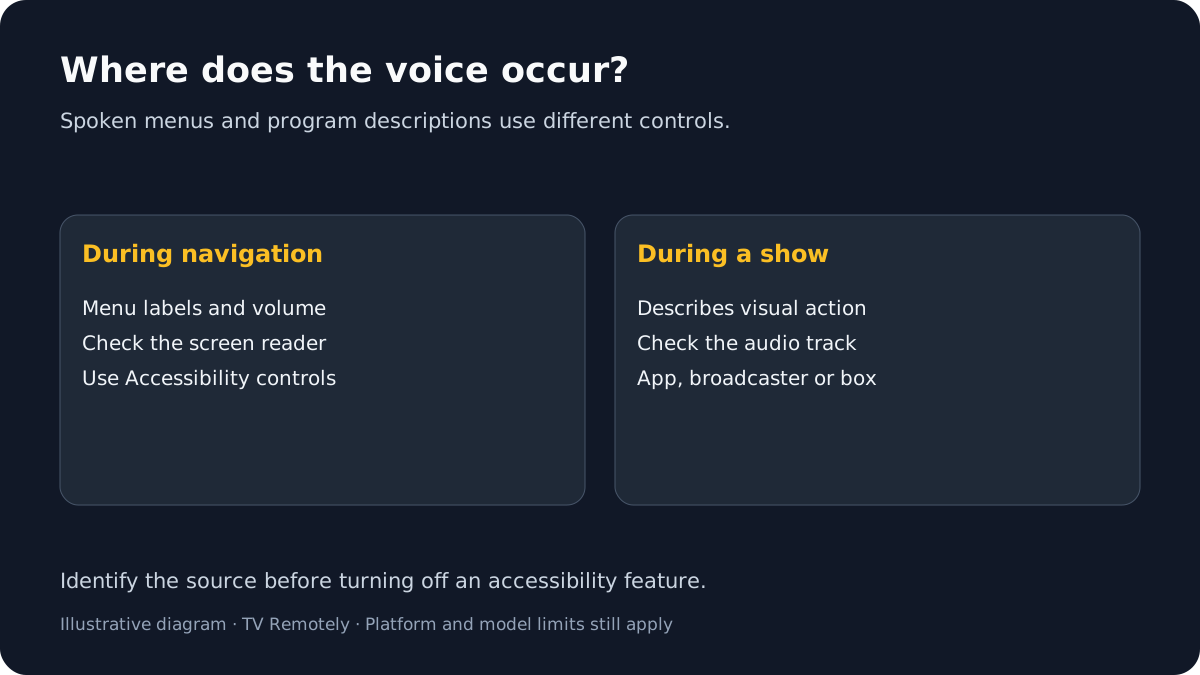
Identify what the TV is narrating
Menu narration follows focus as you move through settings or apps. Program audio description speaks during a show to describe visual action. This guide covers spoken menus; use the program-description section if the voice only occurs during content.
Find the screen-reader setting for your platform
Use the TV’s own Accessibility menu. Labels and shortcuts differ by OS, model, software and region.
Samsung Tizen: open Settings > General & Privacy > Accessibility > Voice Guide Settings and turn Voice Guide off. On some Smart Remotes, holding Volume opens Accessibility Shortcuts.
Samsung says the Voice Guide announces menus and status changes.
If that does not help: If a voice still responds only to spoken commands, check assistant Voice Response separately.
LG webOS: open All Settings > General > Accessibility > Audio Guidance and switch it off. Older models may put Accessibility directly under All Settings.
LG documents model-year menu differences and a remote mute-button shortcut.
If that does not help: If navigation is difficult, use the exact model manual or LG support rather than guessing the menu.
Google TV: open Settings > Accessibility > Services > TalkBack and disable it.
Google lists TalkBack as the screen reader for menus and on-screen text.
If that does not help: Menu design can differ on partner devices; use the TV maker’s instructions if TalkBack is not listed.
Roku OS: open Settings > Accessibility > Screen reader and turn it off. If its shortcut is enabled, press Star four times quickly.
Roku calls this feature Screen reader; it was previously called Audio Guide. Availability varies by product/region.
If that does not help: If the shortcut does nothing, use Settings and check device support.
Fire OS: open Settings > Accessibility > VoiceView and confirm turning it off. Amazon also documents holding Back and Menu for several seconds.
Amazon documents both the shortcut and settings path.
If that does not help: Button combinations vary by remote; use Fire TV settings if your remote lacks those buttons.
If speech continues after the screen reader is off
If only the show is narrated, check audio-description or alternate-audio controls in the app, broadcast or connected box. If a Samsung TV speaks only after a voice command, assistant feedback may be enabled.
What to do next
Turn off the screen reader that is speaking menu labels; use the program audio-description control for narration during a show.
Sources and verification
- Accessibility settings on your Samsung TV — checked 2026-10-29
- LG TV Audio Guidance — checked 2026-10-29
- Make Google TV more accessible — checked 2026-10-29
- Roku screen reader — checked 2026-10-29
- Make Fire TV Stop Reading the Screen — checked 2026-10-29
Frequently asked questions
- Why does my TV read every menu item aloud?
- A screen reader such as TalkBack, Voice Guide, Audio Guidance, Screen reader or VoiceView may be enabled.
- Will turning off the screen reader disable audio descriptions?
- Usually these are separate functions. Screen readers speak interface elements; audio description narrates visual events in supported programs.
- Why is the shortcut different on my TV?
- Shortcuts and menu labels vary by OS, model, remote and region. Use the platform-specific settings route or the model manual.