Troubleshooting
TV narrates what is happening in a show? Check audio description
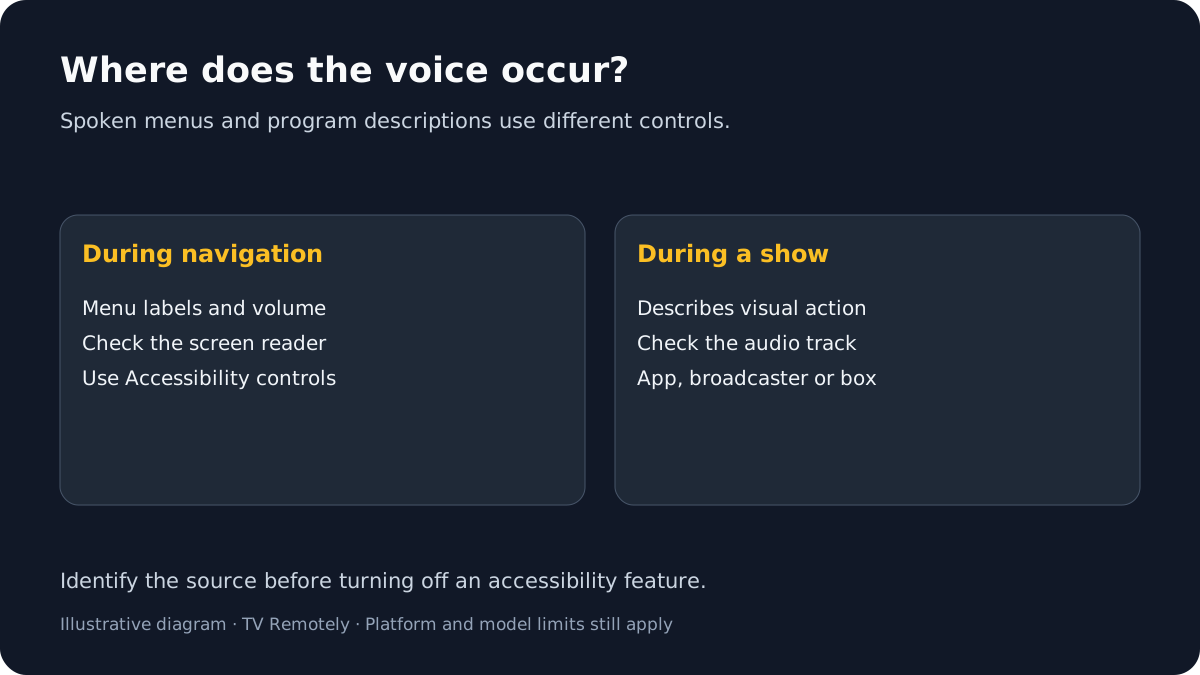
If a voice describes characters or actions during a program while the menus remain silent, audio description (also called video description) may be enabled. Check the source playing the content: it could be the TV’s broadcast setting, a cable or satellite box, or the streaming app’s audio track. Do not turn off the screen reader unless menus are also being read aloud.
Published by TV Remotely · Source checked 2026-10-29. Model and firmware behavior can differ; device tests are named only where performed.
Choose the right troubleshooting path
Check whether narration is in the program or menus
Audio description is an alternate spoken track that explains visual events. A screen reader instead speaks interface elements while navigating. The distinction points to the setting you need.
Pause the program and open the TV menu.
If only the show has narration, the TV screen reader is probably not the cause.
If that does not help: If the menus are also spoken, use the screen-reader guide.
Try another channel, app or input.
If narration occurs only in one service or source, its audio track or accessibility setting may control it.
If that does not help: If it follows every source, inspect TV-level accessibility settings and connected equipment.
Check audio-description settings at the source
For supported broadcasts, LG documents Audio Description/Video Description in Accessibility settings; older webOS versions may use a different label. Samsung lists Video Description as a separate accessibility feature, with availability depending on the broadcast.
On LG, check All Settings > General > Accessibility > Video Description; older models may list Accessibility > Video Description.
LG’s documented setting applies to supported broadcast programming.
If that does not help: If you use a set-top box, check its accessibility or audio-language menu too.
On Samsung, look in Accessibility settings for Video Description or the matching audio option.
Samsung identifies video description separately from Voice Guide and notes broadcast availability.
If that does not help: Menu names vary by model; use the TV’s e-Manual if this option is absent.
In a streaming app, open playback audio, language or accessibility options and select the standard audio track.
App-provided description can be independent of TV settings.
If that does not help: The track name and availability vary by title and service; contact the provider if it is missing or cannot be changed.
If narration remains after you turn it off
A connected cable/satellite box may still be outputting the described track. Test the TV’s own app or another source, then check the box’s settings using its remote.
What to do next
Check the active content track or connected box for audio description before changing the TV screen reader.
Sources and verification
- LG TV Video Description troubleshooting — checked 2026-10-29
- Make Google TV more accessible — checked 2026-10-29
- Accessibility settings on your Samsung TV — checked 2026-10-29
Frequently asked questions
- Is audio description the same as a TV screen reader?
- No. Audio description narrates visual action in supported content. A screen reader reads menu text and controls aloud.
- Why does narration happen on one channel only?
- The broadcaster or program may provide an audio-description track. The feature may be available only on supported programming.
- Why does the narrator continue after I change the TV setting?
- The selected audio track may come from a streaming app or external set-top box, which has its own controls.