Troubleshooting
Guest Wi-Fi and mesh networks hiding a TV remote
A phone remote may fail to find a TV even while both devices have internet. Guest Wi-Fi, client isolation and some mesh configurations can prevent devices on the same router from talking directly. Check the local path before reinstalling the app.
Published by TV Remotely · Source checked 2026-10-26. Model and firmware behavior can differ; device tests are named only where performed.
Compare the networks
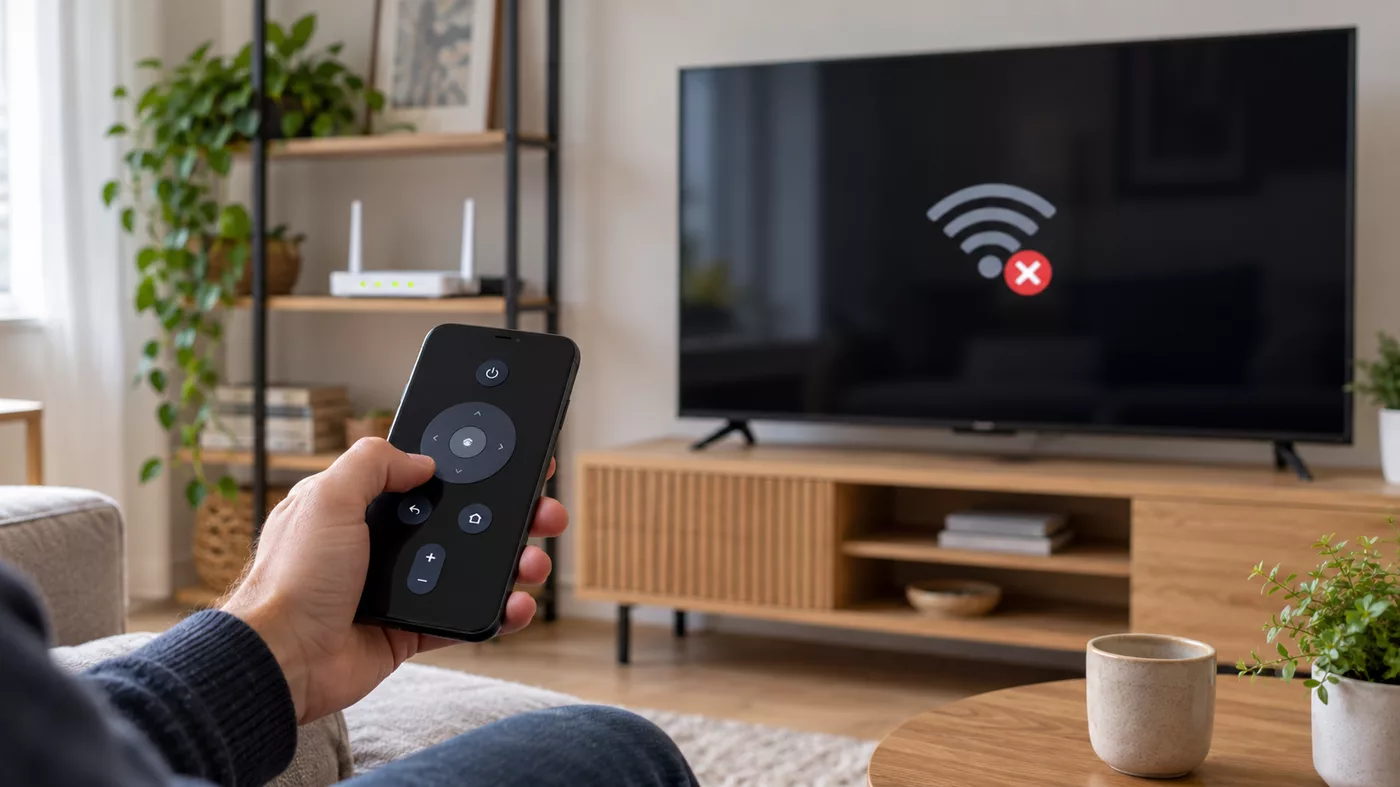
Read the Wi-Fi name on the phone and the TV, and check whether either is connected to a guest network. A TV connected by Ethernet can still be on the same local network as Wi-Fi clients if the router bridges them. Internet access alone does not prove local reachability.
Do not post your local IP addresses or Wi-Fi password in a public support thread.

Look for isolation
Router guest settings often block access to local devices. Some mesh systems separate guests or use different VLANs. Move the phone and TV to the main trusted network or use the router’s documented local-device access option, then retry discovery.
If you do not manage the router, ask its administrator whether local device communication is permitted.
Use the result to choose the next step
If discovery starts working on the main network, the isolation setting was the likely cause. If the TV appears but pairing fails, handle the TV’s approval prompt or pairing code. If the TV is still absent, check its network status and use a manual IP path only where the app and platform support it.
Do not disable the router firewall wholesale to fix one local-control path.
Continue with the relevant guide
Sources and verification
- Roku Developer: External Control Protocol — checked 2026-10-26
- Android Developers: run apps on a hardware device — checked 2026-10-26