Everyday control
Restart a smart TV without a factory reset
You can usually restart a smart TV without erasing its accounts and settings: use the TV’s Restart command when it responds. If it is frozen, follow the manufacturer’s model-specific power-cycle instructions. A factory reset is different and may remove accounts, apps and preferences, so reserve it for cases where the TV maker recommends it.
Published by TV Remotely · Source checked 2026-10-29. Model and firmware behavior can differ; device tests are named only where performed.
Choose the right troubleshooting path
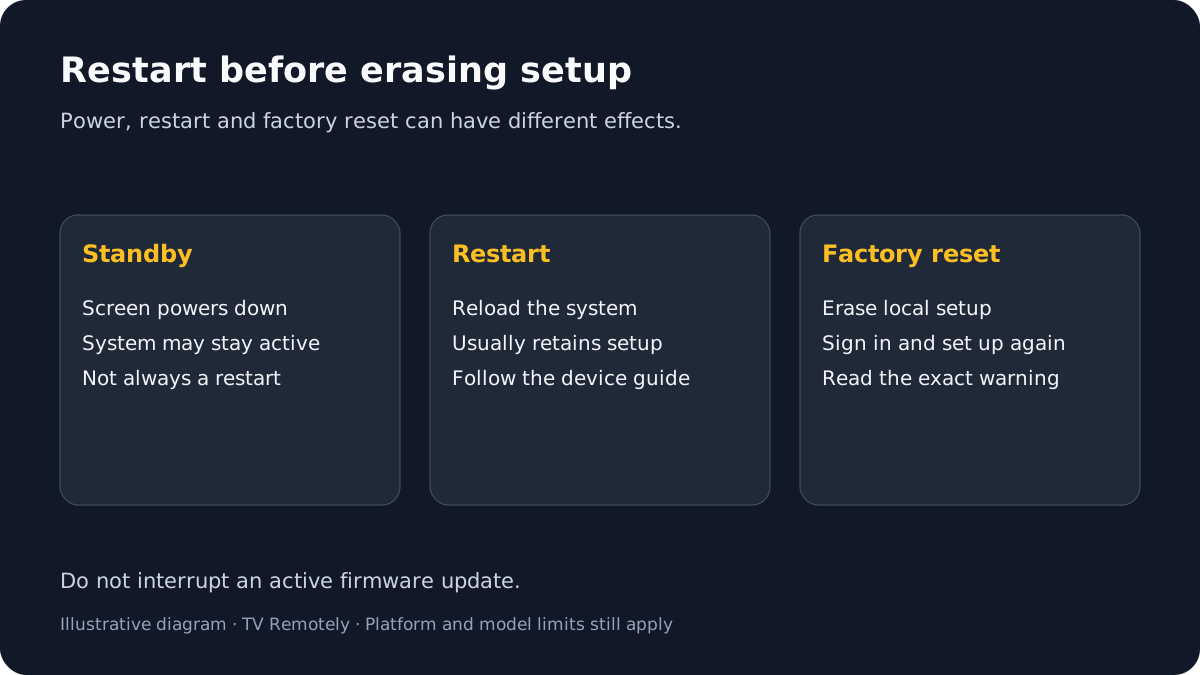
Know the difference between standby, restart, and factory reset
Pressing Power on many remotes puts the TV in standby; it may not fully restart the operating system. A menu command called Restart or System restart performs a software restart on platforms that provide one. Unplugging is a power cycle and should be done only when the manufacturer permits it and no update is running. A factory reset erases user setup. Exact behavior differs by manufacturer and model.
- Restart: reloads the TV system while generally retaining setup and accounts.
- Power cycle: removes power temporarily, then starts the device again; follow the maker’s timing and safety directions.
- Factory reset: returns the device to initial settings and may remove apps, accounts, network settings and preferences.
If the TV is frozen and the menu will not open
Use the exact manufacturer instructions for the TV or attached streaming device. Google’s guidance for an unresponsive Google TV device says to unplug that device’s power cable for one minute and reconnect it. Samsung documents a cold boot for its TVs using a supported remote procedure or a 30-second power disconnection. Roku documents system restart choices for Roku players and Roku TVs. These instructions are platform-specific and should not be combined into one universal timing rule.
Identify whether the frozen screen belongs to the TV operating system or a separate HDMI streaming device.
Restarting the external box may resolve the box while leaving the TV powered on.
If that does not help: Use the model label on the TV or device and check the manufacturer’s support instructions before disconnecting power.
If the menu is unavailable, follow the maker’s documented button or power-cycle procedure for that exact device.
A supported restart can recover a temporary freeze without selecting factory reset.
If that does not help: If the power cord is inaccessible or the model procedure is unclear, stop and contact the maker rather than forcing buttons or using a generic reset pinhole.
After startup, test the same function once and record whether the TV returned to normal.
A clear result helps decide whether the fault was temporary or persistent.
If that does not help: If the device remains frozen or loops at its logo, use the separate startup-logo guidance or contact the manufacturer.
When a factory reset may be appropriate
Consider reset only after the TV maker’s less disruptive steps fail or its support agent recommends it for your model. Do not reset during an update, and do not use a recessed physical Reset button unless the exact manual says what it does. If the TV will not boot, model-specific recovery instructions matter even more because an on-screen warning may not be available.
Documented restart routes by platform
- Google TV: Settings > System > Restart. For an unresponsive device, Google documents disconnecting its power for one minute.
- Samsung: while the TV is on, hold Power on the supported Samsung remote until the TV switches off and back on. Samsung’s alternate cold boot removes power for 30 seconds.
- Roku player: Settings > System > System restart. Roku TV: Settings > System > Power > System restart; some models omit the Power submenu.
- Fire TV streamer: hold Select and Play/Pause together for about five seconds. If frozen, Amazon documents removing device power for 60 seconds. Fire TV Smart TVs have their own model-specific restart guidance.
These timings belong to the named platforms. LG webOS and Hisense VIDAA controls vary by model; use that model’s restart instructions. Leave a device powered during an active system update.
What to do next
Prefer a normal restart for a temporary issue; use a factory reset only after checking what it erases and how the exact model recovers.
Sources and verification
- Fix an unresponsive Google TV device — checked 2026-10-29
- Samsung TV takes a while to turn on or has other glitches — checked 2026-10-29
- Issues playing shows and movies on your Roku device — checked 2026-10-29
- Fix problems with your Google TV device — checked 2026-10-29
- Amazon: restart a frozen Fire TV device — checked 2026-10-29
Frequently asked questions
- Does turning a TV off and on restart it?
- It may only enter standby. If you need a full restart, use the TV’s documented Restart or System restart option; power-cycle only when the manufacturer says to.
- Will unplugging my TV erase my settings?
- A normal power cycle is different from a factory reset, but behavior and recommendations vary by model. Follow the manufacturer’s instructions and do not interrupt a software update.
- When should I factory-reset a smart TV?
- Treat it as a last resort or follow the manufacturer’s recommendation after less disruptive checks. A reset can remove accounts, apps, network settings and preferences.