Everyday control
How to change a TV’s Wi-Fi without its remote
If the TV has lost its Wi-Fi, a phone remote app usually can’t help, because the app talks to the TV over the network that just disappeared. The cheapest fix that works on most TVs is to recreate the old network for a few minutes, using your phone’s hotspot, so the TV reconnects on its own and you can change it from inside its settings.
By TV Remotely · Updated · Sources and testing policy
Recreate the old network with a hotspot
TVs remember their saved Wi-Fi by name (SSID), password and security type. If something nearby broadcasts exactly the same three things, many TVs rejoin it automatically. A phone hotspot is the easiest source.
Use a second phone or tablet as the hotspot. In its hotspot settings, set the network name to the old Wi-Fi name exactly, including capital letters, and the old password. Choose WPA2 security if offered.
The TV sees a network it already knows.
If you don’t remember the old password, check the router’s label, a saved-password list on a laptop or phone, or the new router’s admin page.
Force 2.4 GHz. On iPhone, turn on Personal Hotspot → Maximize Compatibility. On Android, set the hotspot AP band to 2.4 GHz.
Older TVs and sticks that can’t see 5 GHz can connect.
Many TVs fail to join a 5 GHz-only hotspot with no error message.
Turn the old Wi-Fi off or move away from the old router so it can’t compete, then power-cycle the TV.
The TV joins the hotspot and shows an IP address in its network status.
If it doesn’t join within a minute or two, check that the name matches character for character; a trailing space or different capital letter is enough to fail.
Join your everyday phone to the same hotspot, open the remote app, and use it to go to Settings → Network on the TV and select the new router.
The TV is now on the new Wi-Fi.
Keep the remote working on the hotspot until the TV shows the new network as connected. Then turn the hotspot off.
The hotspot phone can’t reliably act as the remote for itself, so you need two devices. The hotspot guide in the related links explains why.
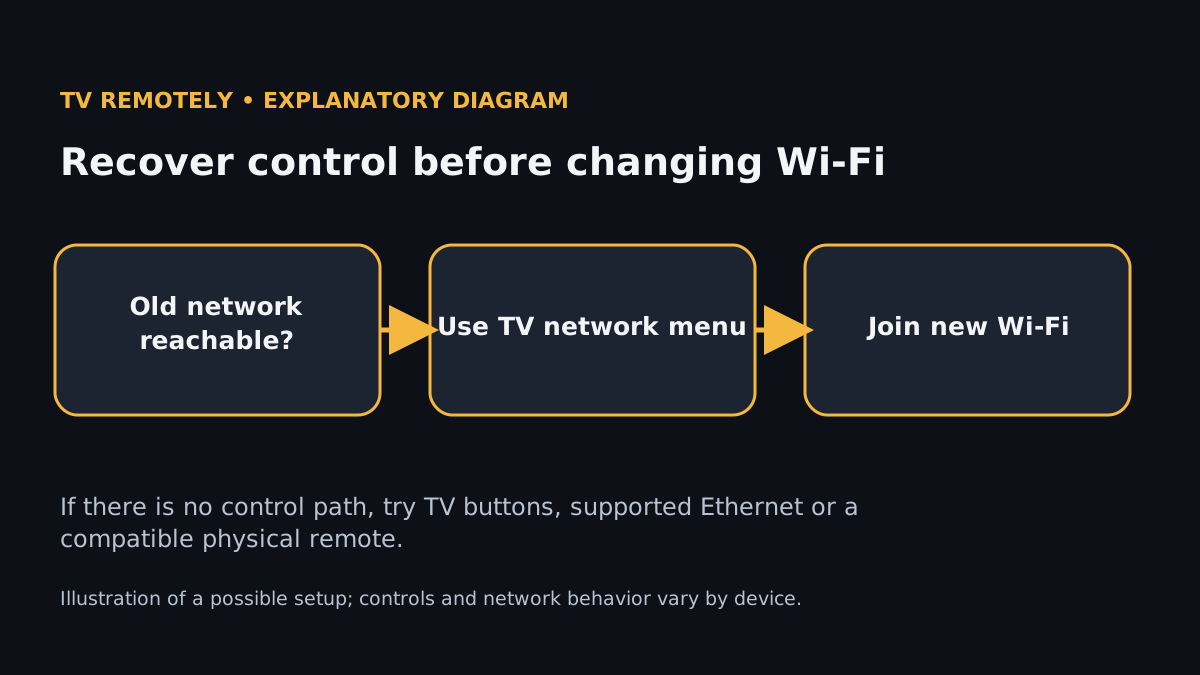
If the hotspot trick doesn’t work
- Ethernet: plug the TV into the router (or a spare LAN port on the new router) and the TV is reachable again. Most TVs and boxes such as Roku Ultra have a port. Many sticks don’t, though Amazon and some Android TV makers sell Ethernet adapters for specific models.
- The TV’s own buttons: nearly every TV has a power button or small joystick under the bezel or behind the logo. On many sets it opens an on-screen menu that is enough to reach Settings → Network.
- A USB keyboard or mouse in the TV’s USB port works for navigation on many Android TV, Google TV and LG sets, though not all. Try it before buying anything.
- An inexpensive IR replacement remote: it needs no Wi-Fi, no pairing and no app. Match it to the brand, not to the model number printed on the TV’s back.
What not to do
Don’t factory-reset the TV to “start fresh”. A reset wipes the saved Wi-Fi and the pairing a phone app relied on, so you lose the one thing you had. The factory-reset guide in the related links covers what you can and can’t do afterwards.
Related guidance
Sources for these instructions
- Roku: what to do when you have lost your remote — checked 2026-11-02
- Google TV: set up a device and remote — checked 2026-11-02