Troubleshooting
Roku private listening not working? Check headphones and device support
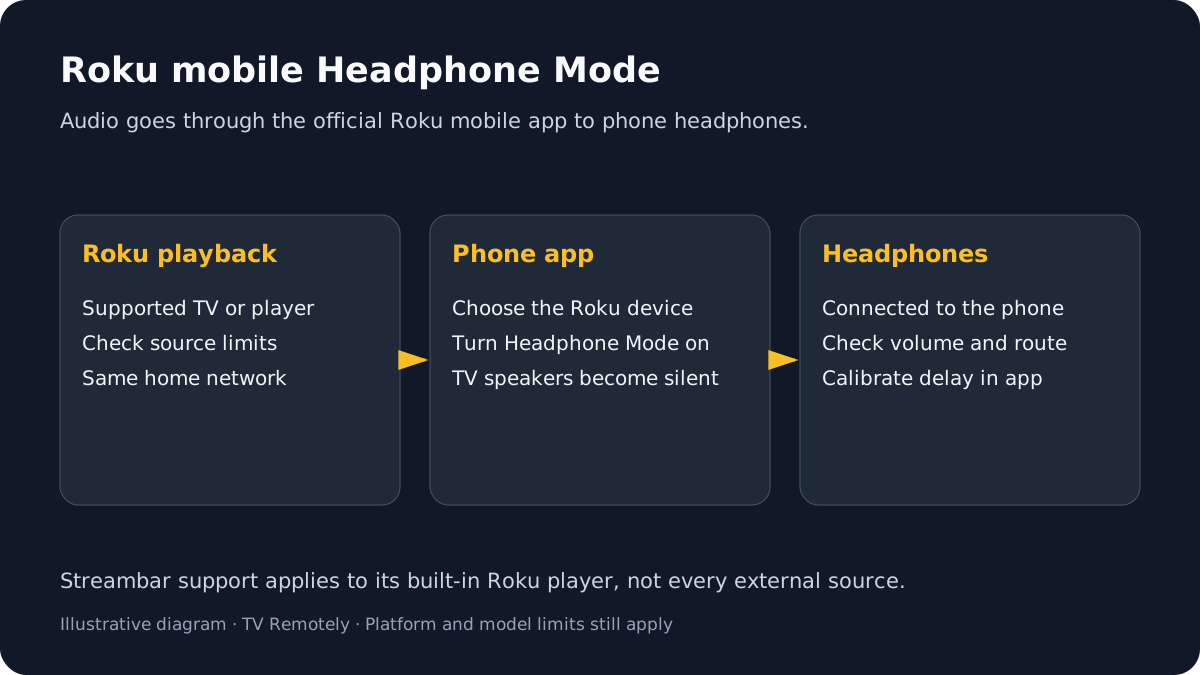
Roku private listening sends a Roku player’s audio to headphones through the Roku mobile app or a compatible voice remote. If the headphone icon is missing, the device may not support mobile Headphone Mode. If the icon appears but sound is silent or delayed, check the phone’s headphone connection, selected Roku device and app audio-delay controls.
Published by TV Remotely · Source checked 2026-10-29. Model and firmware behavior can differ; device tests are named only where performed.
Choose the right troubleshooting path
If the headphone icon is missing
Roku says the icon may be absent because the mobile app is outdated or the Roku device does not support mobile Headphone Mode. Update the app, then check the model’s feature support.
Update the Roku mobile app and select the correct Roku device in its Devices screen.
The app must connect to the intended player on the same network.
If that does not help: If the icon still is not present, check Roku’s device support information; there may be no setting to add the feature.
Confirm your player and app are on the same Wi-Fi network.
The mobile app uses a local connection to the Roku.
If that does not help: Resolve network discovery before troubleshooting headphone audio.
If private listening has no sound or cuts out
Roku recommends checking volume, muting, headphone plugs, Bluetooth pairing and the selected device. Restart the app or Roku if a session has become unstable.
Raise volume carefully and confirm the headphones are plugged in or paired to the phone.
The app routes audio to the phone headphones; the TV speakers are muted during Headphone Mode.
If that does not help: For Bluetooth headphones, check the phone’s Bluetooth connection first.
Turn Headphone Mode off and back on in the Roku app.
This restarts the private-listening session.
If that does not help: Close/reopen the app, restart the Roku device, or try another pair of headphones.
If using a Streambar, check its special source limit.
Roku says private listening on supported Streambar products works with the built-in Roku player, not external HDMI devices or Bluetooth-connected computers/phones.
If that does not help: Switch to the built-in player or use another audio route.
If audio is out of sync
For Bluetooth headphones connected to the phone, Roku provides an audio-delay adjustment under the Headphone Mode controls. Wired headphones and other routes may behave differently.
Adjust delay for Bluetooth headphones connected to the phone
In the official Roku mobile app, open Remote, activate the Headphone icon, then open the gear-shaped Controls menu > Adjust audio delay > Get started. Follow the calibration prompts. If needed, return to that control and choose Advanced adjustment for the slider. This is Roku’s mobile Headphone Mode control, not a TV-wide sound-delay setting.
What to do next
Confirm Roku Headphone Mode support and phone audio routing, then adjust delay only if audio is out of sync.
Sources and verification
- How to resolve an issue with private listening — checked 2026-10-29
- How to use headphones with the Roku remote app for Headphone Mode — checked 2026-10-29
- Install the Roku mobile app — checked 2026-10-29
Frequently asked questions
- Why is the Headphone Mode icon missing from the Roku app?
- The app may need an update, or the selected Roku device may not support mobile Headphone Mode.
- Will TV speakers play while Roku private listening is active?
- Roku says TV speakers are silent during mobile Headphone Mode; audio goes to the connected phone headphones.
- Can I use private listening from a Roku Streambar HDMI input?
- Roku’s support page limits Streambar private listening to its built-in streaming player, not external devices.