TV setup
Cast Android photos and videos to a compatible TV
To show Android photos on a TV, use a receiver that supports the method you choose. Google Photos documents casting to Chromecast and compatible Google Cast devices; a TV being “smart” does not by itself mean it supports Google Cast. If you have a compatible receiver, connect the phone and receiver to the same Wi-Fi, choose the photo in Google Photos, tap Cast, and select the receiver.
Published by TV Remotely · Source checked 2026-10-29. Model and firmware behavior can differ; device tests are named only where performed.
Choose the right troubleshooting path
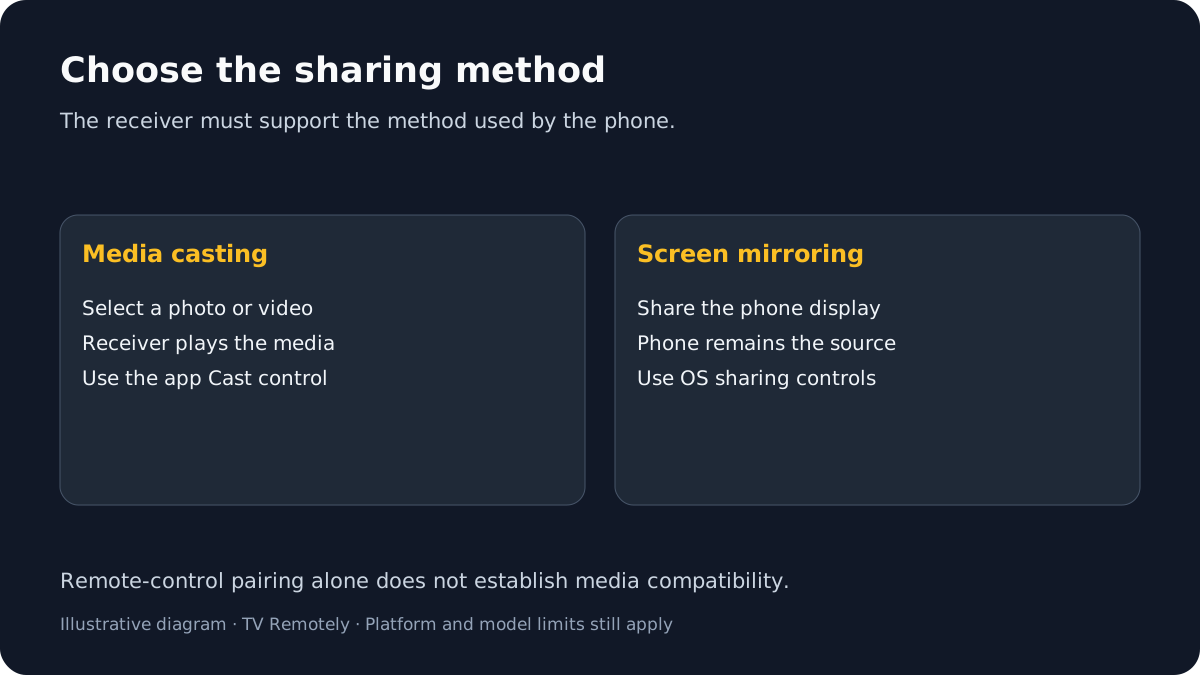
Choose casting or screen mirroring
Casting sends supported media to a receiver that plays it. Screen mirroring sends a copy of the phone display and depends on the phone and TV supporting a compatible mirroring method. A Chromecast or Google Cast receiver is not the same as every Samsung, LG, Roku, Fire TV, VIDAA or other smart TV. Check the receiver’s own manual or settings before following a brand-specific method.
- Use Google Photos casting when the TV or attached device is a compatible Chromecast/Google Cast receiver.
- Use the TV maker’s or phone maker’s documented sharing method when it supports another protocol.
- Use Android screen casting only when the TV/receiver supports the matching route; Google notes that Android screen casting has network and device requirements.
If casting stops when the phone locks, first check whether you started media casting from an app or whole-screen mirroring. With media casting, a compatible receiver plays the selected media; screen mirroring shares the phone display through the phone operating system. The lock behavior can depend on the app, phone and receiver, so check their current instructions and test one short item before relying on background playback. These two methods are not interchangeable.
Cast a photo or video with Google Photos
Google’s documented flow requires a Chromecast or compatible Google Cast receiver. The phone and receiver should be on the same Wi-Fi network. The Photos app may show different controls by version, so use its current Cast icon and on-screen prompts.
Make sure the TV or streaming device is on and set to the input for the connected receiver. Confirm that it supports Google Cast.
A compatible receiver should be available for selection in the Cast list.
If that does not help: If it is a separate Chromecast, check its power and HDMI input. If it is only a smart TV, confirm Cast support in that exact model’s documentation.
Connect the Android phone and receiver to the same Wi-Fi network name. Open Google Photos and select the photo, album or video you want to show.
The Cast control should list available receivers on the local network.
If that does not help: If the receiver is missing, see the discovery checks below; do not assume that sharing the internet connection means devices can discover each other.
In Google Photos, open More > Cast, select the Chromecast receiver, then open a photo or video. Swipe to move between photos.
The selected item should appear on the TV if the receiver accepts it.
If that does not help: If the TV shows an error, record the file type and receiver model; try another item before concluding the entire phone or TV is incompatible.
When finished, return to the Cast control and choose Stop casting.
The receiver should stop displaying the phone’s selected media.
If that does not help: If the session remains active, use the receiver’s own on-screen controls or disconnect it through the phone’s Cast notification.
If the TV does not appear in the Cast list
Confirm the TV is using a Chromecast or Cast-enabled receiver, and check that the receiver is powered and online.
This rules out a protocol mismatch, such as expecting Google Cast from a television that supports only another sharing method.
If that does not help: Check the exact TV or streaming-device manual; brand name alone does not establish Cast support.
Compare the Wi-Fi network name on the phone and receiver. Check whether a guest network or router setting isolates devices from one another.
Devices on separate or isolated local networks may have internet access but remain unable to discover each other.
If that does not help: Google’s help for Android screen casting calls out access-point isolation; use the router manufacturer’s instructions before changing network settings.
Close and reopen Google Photos, then retry after confirming the receiver is awake.
A fresh discovery attempt may show an available receiver.
If that does not help: If it remains missing, test the receiver’s official casting flow or contact its manufacturer with the phone and receiver models.
What to do next
Choose media casting when the source app supports it; use screen mirroring only when you need to send the whole phone display.
If the TV has no Google Cast receiver
Use the sharing method documented by the phone and TV manufacturers, or attach a supported receiver. A phone remote app and a casting app can use different protocols; successful menu control does not establish photo or video playback support.
Sources and verification
- Show photos on a TV with Chromecast — checked 2026-10-29
- Improve your Android screen casting experience — checked 2026-10-29
- Cast media from Google Cast-enabled apps to your TV or display — checked 2026-10-29
Frequently asked questions
- Can I cast Android photos to any smart TV?
- No. The TV or attached device must support the casting protocol used. Google Photos documents Chromecast and compatible Google Cast receivers; other televisions may use a different method.
- Do the phone and TV need the same Wi-Fi?
- For Google’s Chromecast photo-casting instructions, the phone and receiver should be on the same Wi-Fi. Guest networks or access-point isolation can prevent discovery even when both have internet.
- Is casting the same as screen mirroring?
- No. Casting sends media to a compatible receiver to play, while screen mirroring sends the phone display through a system-level sharing feature.
- Why does casting stop when I lock my Android phone?
- You may be mirroring the whole screen, or the app/receiver may stop playback when the phone locks. First identify whether the session is media casting or screen mirroring, then check the app and receiver instructions; behavior varies.